


I talk a lot about using AI as leverage.
But one thing I don’t say enough?
How you set up your AI tools matters more than how you use them.
Most creators are using Claude the same way every single day…open a tab, ask something, close it, repeat.
No memory. No context. No compounding. Just Claude as a glorified search engine.
I was guilty of this too, for longer than I’d like to admit.
Today’s issue is a little different.
I’m sharing a post from a fellow creator Ilia Karelin who nailed something I’ve been wanting to cover in depth…the full Claude workflow that actually compounds over time.
He breaks down Projects, Chat, and Cowork as three distinct layers of a system, and walks you through exactly how to set it up in 30 minutes.
The frameworks are solid, the setup is practical, and if you use Claude for any part of your content creation... this one is worth your full attention.
Here is the blueprint from Ilia Karelin. 👇
I write a newsletter about AI. I use Claude pretty much every day. And in the beginning, for months, I was doing the same thing most of you are probably doing right now.
Open Claude. Ask a question. Get an answer. Close the tab.
Next morning? Start over. Claude had no idea who I was. Didn’t know my style. Didn’t know what I wanted. Didn’t know I really didn’t like certain words.
Whenever I was doing any research, every session would always start with me re-explaining the same things. My tone. My niche. My preferences. I was spending the first 10-20 minutes of every AI session just getting Claude back up to speed.
Since then, I adopted several workflows, Claude has gotten better, Projects were released, and Cowork was added.
Today’s post is going to be about using all of these tools together in one workflow that will allow you to get the most out of Claude.
Why Better Prompts Don’t Fix Your Claude Workflow
There’s a lot of prompting advice out there. And what I like about Substack is that there’s a lot of actionable content and advice here. I want to share the same with you.
None of that solves the actual problem: even a perfect prompt can start cold.
You open Claude and write:
“Write a post intro about why most creators waste time on social media.”
Claude gives you something. It’s fine. But it doesn’t sound like you. The tone is off. The paragraphs are too long. It used words you’d never write.
So you add another prompt: “Make it more casual, shorter paragraphs, no corporate language.” Better. Still not your voice.
Now you’re three prompts deep and you haven’t started creating. You’ve spent your time onboarding Claude instead of working with it.
If you hired a real content assistant, you wouldn’t re-introduce yourself every morning. You’d onboard them once and then just say “draft the intro.” They’d know what to do.
Claude can work the same way. Most creators just never set it up.
Claude Projects, Chat, and Cowork: The 3-Layer AI Workflow
A team member you’d actually trust knows three things:
1. Who you are — your brand, your voice, your audience
2. What you’ve done — your past work, your content, your products (if any)
3. How you like things done — your style preferences, your workflow
Claude can know all three. The shift happens across three layers, each one escalating what AI does for you:
Projects = Claude knows who you are (memory)
Chat = you work with Claude (conversation)
Cowork = Claude works for you (autonomous execution)
A search engine only does the middle one. A real teammate does all three.
How to Set Up Claude Projects for Content Creation
Claude Projects let you upload documents and set instructions that persist across every conversation inside that Project. Set it up once, and every future conversation starts with that context already loaded.
I am really creative, so I have a Project called “Content.” Here’s the little setup for this step:
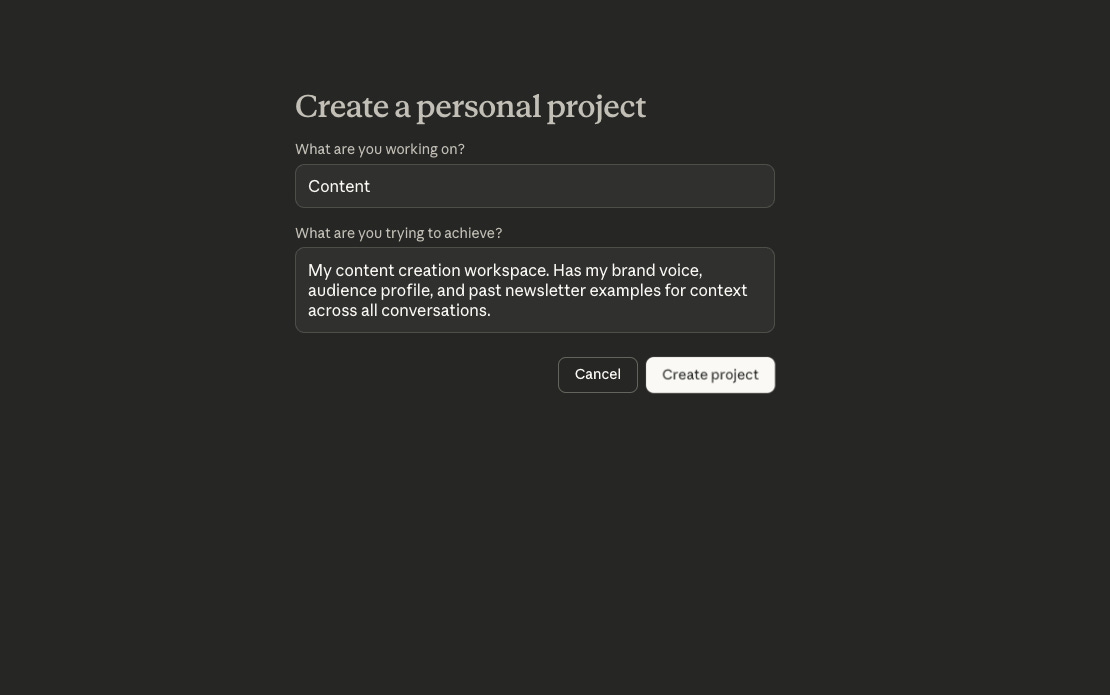
First, I wrote custom instructions. These tell Claude how I write, what words to avoid, how to format, and what to never do. You write these once and they apply to every conversation inside this Project.
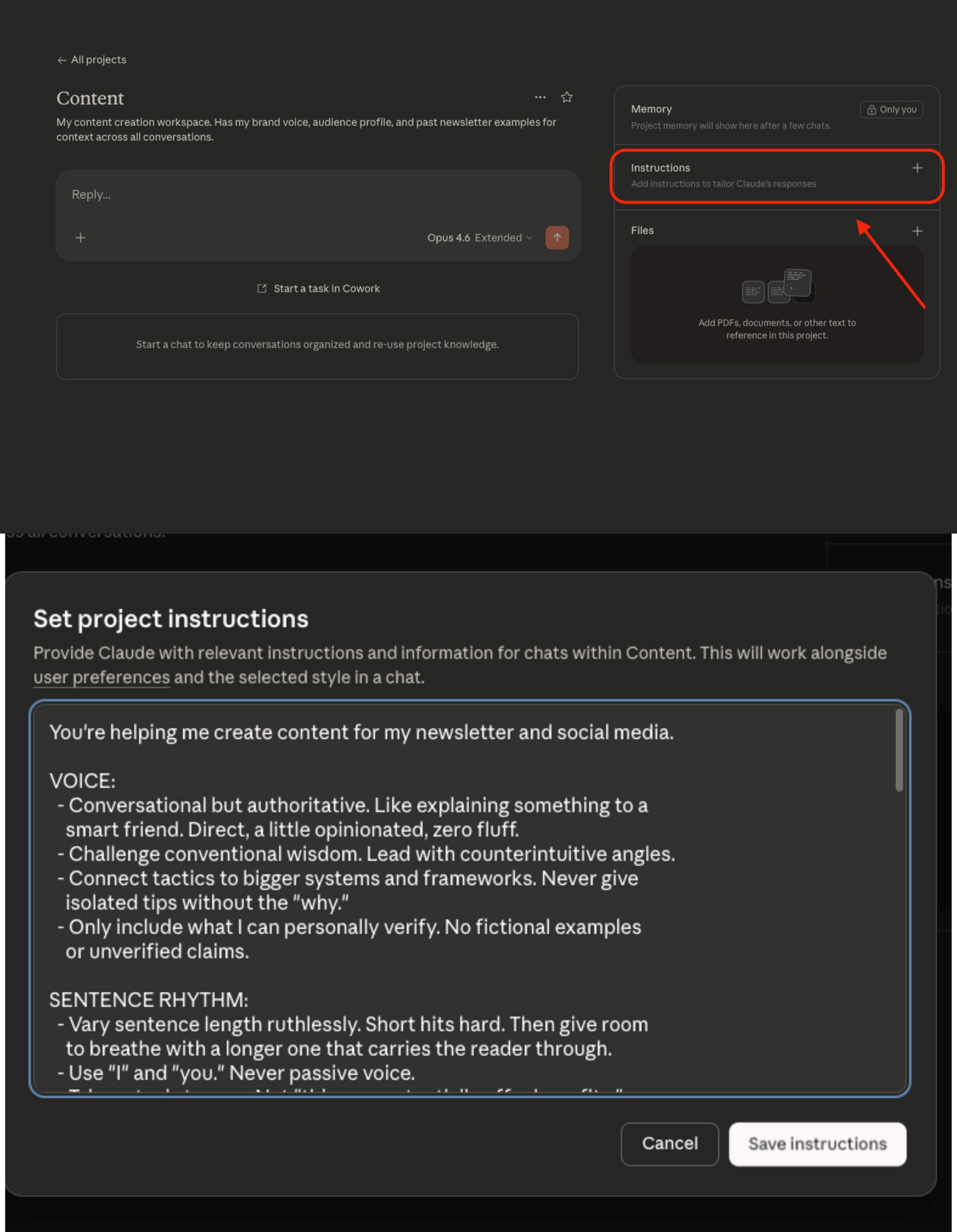
Here’s the full custom instruction for you to copy if you want:
You're helping me create content for my newsletter and social media.

VOICE:
  - Conversational but authoritative. Like explaining something to a
    smart friend. Direct, a little opinionated, zero fluff.
  - Challenge conventional wisdom. Lead with counterintuitive angles.
  - Connect tactics to bigger systems and frameworks. Never give
    isolated tips without the "why."
  - Only include what I can personally verify. No fictional examples
    or unverified claims.

SENTENCE RHYTHM:
  - Vary sentence length ruthlessly. Short hits hard. Then give room
    to breathe with a longer one that carries the reader through.
  - Use "I" and "you." Never passive voice.
  - Take actual stances. Not "this may potentially offer benefits."
    Say "this works" or "it fails."
  - Hedge naturally when genuinely uncertain — "maybe," "probably,"
    "sometimes." Not everything needs to be definitive.
  - Start sentences with conjunctions when it fits. But don't overdo it.
  - Use em dashes sparingly. AI overuses them.

BANNED FORMULAS (delete on sight):
  - "That's not [X]. That's [Y]."
  - "This isn't just [X]. It's [Y]."
  - "In a world where [scary change], [virtue] becomes [advantage]."
  - "Most people [lazy thing]. The few who win [disciplined thing]."
  - "Here's the truth: [obvious statement]."
  - "If you're not doing [X], you're already behind."
  - "Not only... but also..."
  - Rule of three listings ("Speed, efficiency, and innovation")

BANNED WORDS:
  delve, intricate, tapestry, interplay, foster, garner, underscore,
  pivotal, showcase, enduring, landscape, ecosystem, robust, leverage,
  synergy, paramount, unlock, supercharge, game-changer

KILL PADDING PHRASES:
  - "highlighting the importance of..."
  - "plays a crucial role in..."
  - "it is important to remember that..."
  - "This development highlights the ongoing evolution of..."
  Just state the thing directly.

KILL META COMMENTARY:
  - "Let's walk through..."
  - "In this section, we will explore..."
  - "Below is..."
  - "Let me break this down for you..."
  Just say the thing.

FORMATTING:
  - Bold for key concepts only (2-3 per section max)
  - Never ALL CAPS for emphasis
  - Short paragraphs (2-4 sentences max)
  - Numbered lists for steps, bullet lists for features/options
  - Horizontal rules between major topic shifts

WHEN DRAFTING:
  - Match the voice and rhythm from my uploaded content examples
  - Write for my specific audience (see Audience doc)
  - Every piece needs at least one concrete, actionable takeaway

WHEN REPURPOSING:
  - Adapt format, keep the core insight intact
  - LinkedIn: hook in first line, short paragraphs, end with question or CTA
  - Email subject lines: under 50 characters, curiosity-driven, no clickbait
Then I uploaded three files:
- Brand Voice — a half-page describing how I write. My tone, my sentence structure, phrases I use, phrases I never use.
- Audience — another half-page. Who my readers are, what they care about, what turns them off.
- Content Examples — two or three of my best past newsletters. Not for Claude to copy. For it to learn my rhythm, my structure, how I open and close a piece.
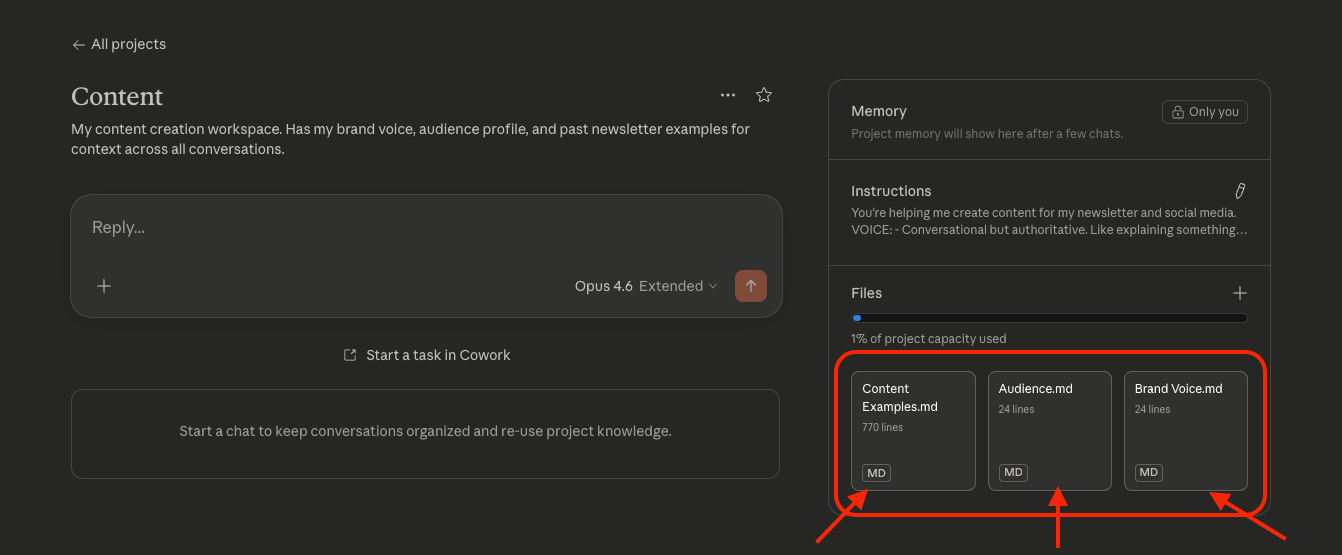
That’s it. Maybe 20 minutes to put together. And now every conversation inside that Project already knows my voice, my audience, and my style.
Let’s keep going.
How Claude Chat Compounds Inside a Project
With Projects as the foundation, conversations start building on each other instead of resetting. It’s all about context.
Think about this workflow below:
I open a chat inside my Content Project. I say: “Help me brainstorm 5 angles for a newsletter about why most creators overthink their content calendar.” Claude gives me five options, already in my voice, already tuned to my audience. I pick one and we draft together.
Two days later, new chat, same Project. “Turn the key points from my last newsletter into 5 LinkedIn posts.” Claude already knows my voice from the Project docs. The posts come back sounding like I wrote them, because Claude has my patterns and preferences baked in.
End of the week: “Write 3 email subject lines for this week’s send.” Claude already knows how I write subject lines from the examples I uploaded.
Here’s what that looks like. I asked Claude to write a newsletter intro about Cowork inside my Content Project:
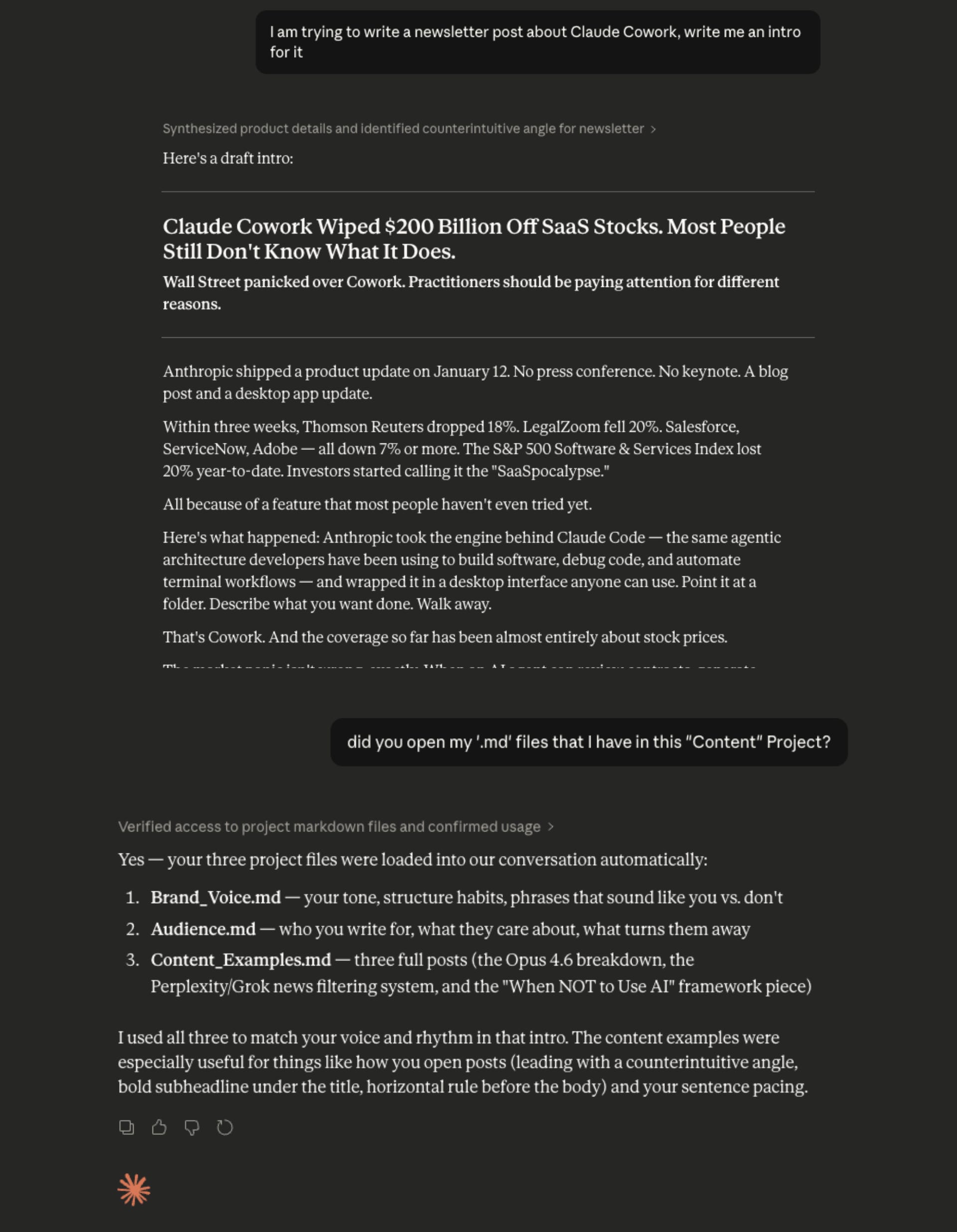
No correction prompts. No “make it more casual.” It already knew.
Each conversation picks up where the Project left off. I never re-explain. I just work.
The creator who uses Claude as a search engine restarts every time. The one who uses it as a team compounds every session. Same tool. Completely different results.
How Claude Cowork Automates Content Tasks From Your Files
This is where most creators haven’t gone yet. Cowork can be very powerful.
Chat is a conversation. You type, Claude responds, you refine. You’re working with Claude.
Cowork is different. You assign a task, and Claude executes it on its own. It can read your local files, create spreadsheets with real formulas, build presentations, organize documents. You’re not going back and forth. You step away and come back to finished work.
Here’s a real example.
I have 15-20 published newsletter posts sitting in a folder on my computer. I’ve been meaning to audit them for months.
Which topics could become a course module?
Which ones could I repurpose into LinkedIn carousels?
Which topics haven’t I revisited in a while?
So I opened Cowork, pointed it at my local `/posts` folder, and attached my Content Project as context.
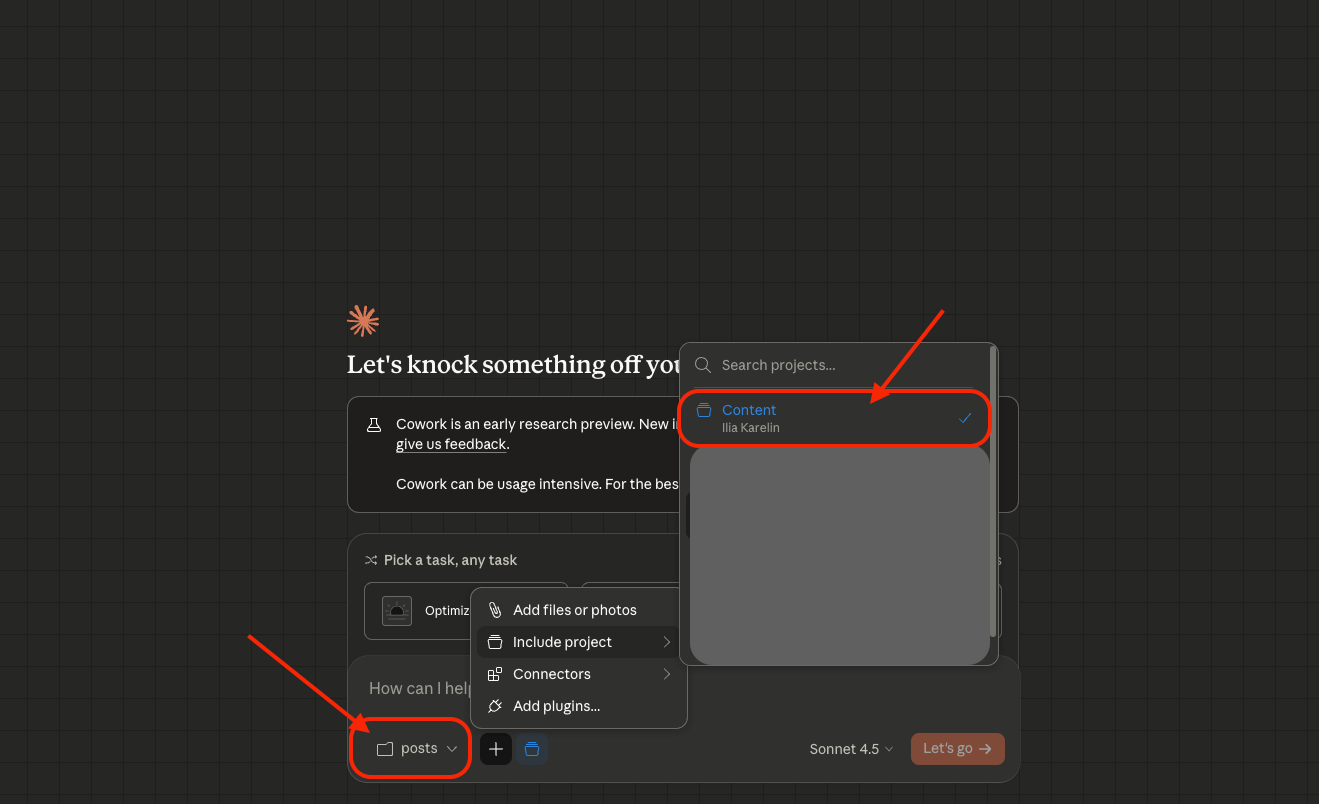
I gave it one prompt:
“Read all my published posts in the /posts folder. Build me a spreadsheet with columns for: title, topic category, key takeaway, 2 repurposing ideas tailored to my audience, and flag any topics I haven’t revisited in 2+ months.”
Cowork broke the task down, read through my posts, and got to work. Something new got also added as of Feb 11, 2026 - you can also add a CLAUDE.md file to individual folders with specific instructions for how Cowork should handle the files in that folder.
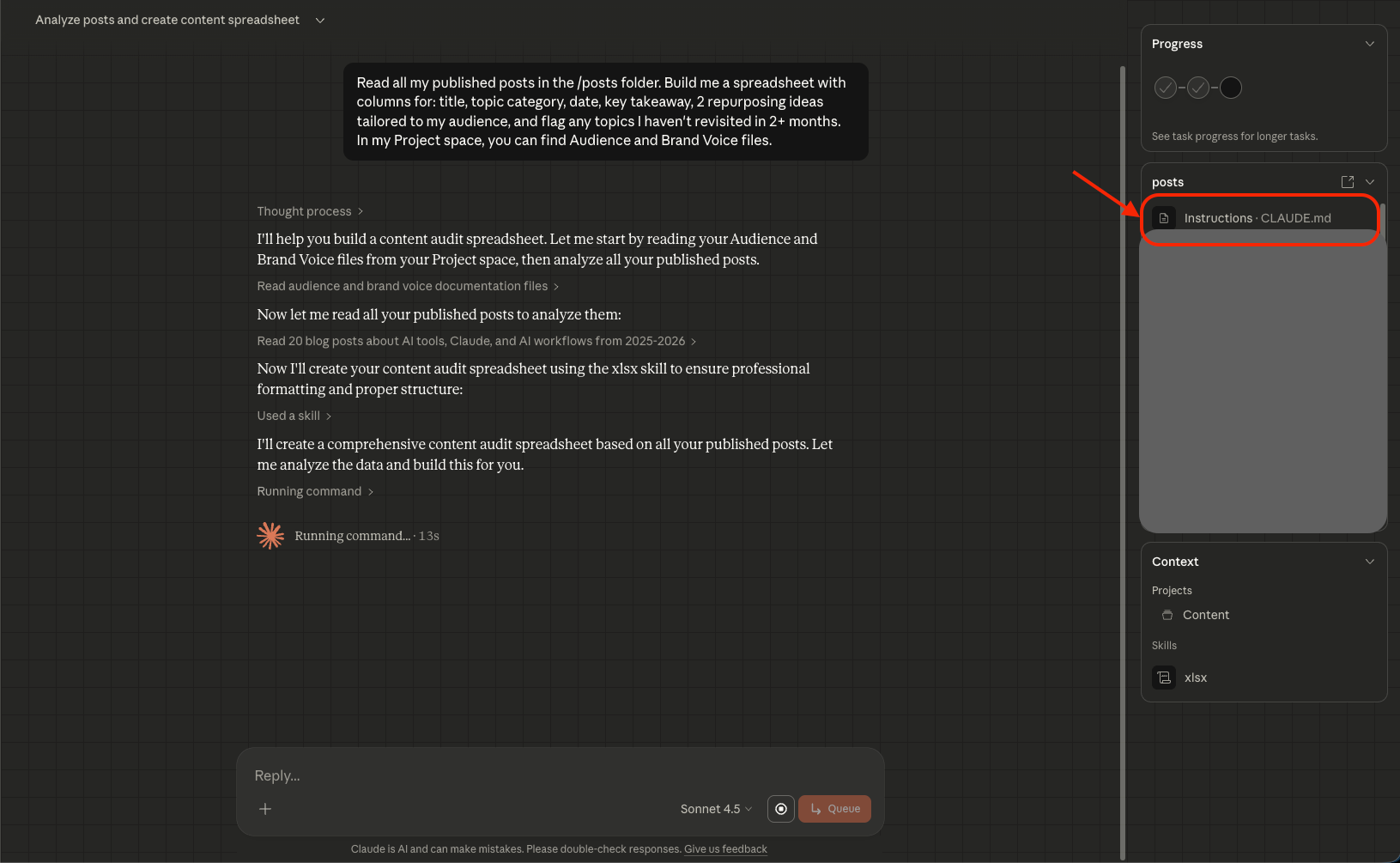
Came back to a finished spreadsheet.
![The resulting Excel spreadsheet]](https://substackcdn.com/image/fetch/$s_!326H!,f_auto,q_auto:good,fl_progressive:steep/https%3A%2F%2Fsubstack-post-media.s3.amazonaws.com%2Fpublic%2Fimages%2F143b7ca0-513a-4296-9b5d-1401f2419aba_1920x631.png "The resulting Excel spreadsheet]")
As you can see, the Project context changed everything. Without it, the repurposing ideas would have been generic - “turn into a X thread,” “make a LinkedIn post.” With my Content Project attached, Claude already knew my audience wants practical systems and workflows, not tips. So the repurposing suggestions actually matched what my readers care about.
You can also think of other tasks you can assign to Cowork:
“Turn my rough course notes into a slide deck with speaker notes”
“Organize my content folder by topic and rename files consistently”
“Create a presentation deck for.....”
“Read these 3 competitor newsletters and give me a one-page brief on what they’re covering that I’m not”
One sentence to assign. Finished work when I came back. Each time, the Project context meant Claude already knew my voice, my audience, and my standards.
Now, let’s really quick go through setting up the Claude Project and Cowork.
How to Set Up Claude Projects and Cowork in 30 Minutes
You don’t need to overhaul anything. You need one focused session.
Step 1: Create your first Project (10 min)
Open Claude. Create a new Project. Name it “Content” (be creative like me) or whatever fits your main workflow.
Write custom instructions that describe your voice, banned words, and formatting preferences.
Then upload 3 docs: brand voice (half a page), audience description (half a page), and 2-3 of your best past content pieces (can be LinkedIn, X, or any other social media). Keep each doc short.
Step 2: Test it with a real task (10 min)
Start a chat inside that Project.
Give it something you’d normally do from scratch: draft a newsletter intro, write social posts, brainstorm email subject lines.
Compare the output to what you’d get in a blank conversation. You’ll feel the difference immediately.
Step 3: Try Cowork (10 min)
Open Cowork, attach your Project as context, and point it at a local folder with your content.
Give it a multi-step task: “Read my posts and create a spreadsheet with repurposing ideas tailored to my audience.”
Step away. Come back to finished work.
Why Claude Setup Matters More Than Prompt Skills
Every creator has access to the same AI tools. The ones getting dramatically more value aren’t writing better prompts. They spent 30 minutes giving AI the context it needs to actually help.
Most people will read this and think “I’ll set this up eventually.” That’s the same instinct that keeps you re-explaining yourself to Claude every Monday morning.
30 minutes. 3 documents. 1 Project. That’s the entire difference between using AI as a search engine and using it as a team.
Setting up your AI workflow the right way is step one.
But here’s what comes next…using that workflow to actually build something.
That’s exactly what I cover inside the AI Digital Product Builder.
It’s a complete system for using AI to create, package, and sell digital products…with the same workflows and Claude setups I use personally.
If you’ve read this post and thought “okay, I want to build something with this”… that’s where you start.
And if you’re not ready for that yet, grab the Lean AI-Powered Business Playbook for Creators… it’s free, and it gives you the foundation.
The mindset, the tools, the first steps. No fluff.
The workflow described in today’s post removes the friction from creating.
What you do with that time and leverage is up to you. I’d rather you use it to build something that compounds — not just content that disappears in 24 hours.
Until next time — Sharyph | Founder of The Digital Creator
Thank you Sharyph for the opportunity! Hopefully people will find this useful!
Treating tools like teammates changes how you work.